25 — 真实感渲染
简介
几节课前我们导入汉堡时,它看起来并不太好。简而言之:有很多因素都会导致模型看起来不对劲。
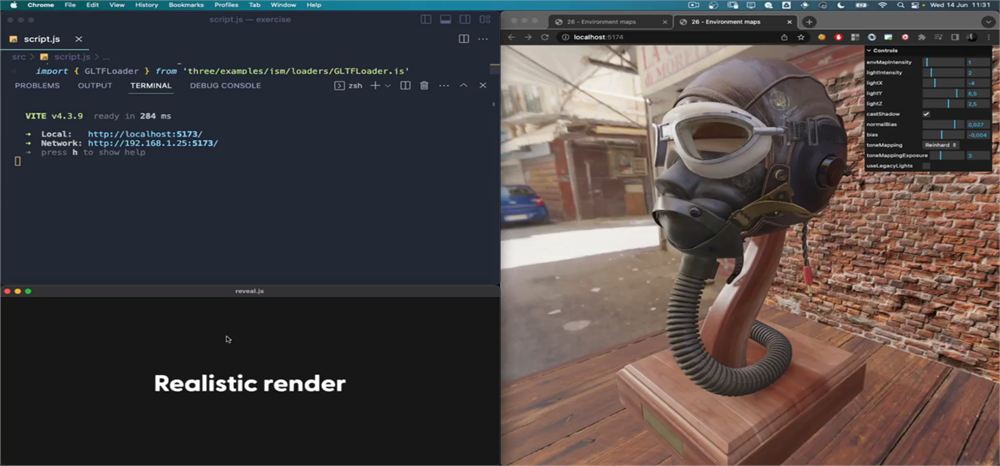
有时我们想要非常真实的渲染效果。也许是因为我们想在网站上展示一件真实的产品,或者我们是 3D 艺术家,想用尽可能最好的效果来展示自己的作品。无论如何,我们都需要一个尽可能真实的渲染结果。
在本节课中,我们将学习许多提升模型渲染质量的技术。不过要小心:其中一些技术会影响性能,还有一些技术取决于你的模型。你需要根据具体情况灵活调整。
搭建环境
我们可以使用自己的汉堡,但最好尝试一个更真实的模型,带有 texture、normal map 等。我们将使用 Flight Helmet,它来自 GLTF Sample Models 仓库。你可以在 /static/models/ 文件夹中找到该模型,它已经被加载并添加到 scene 中。
我们还会使用 lil-gui 来调整尽可能多的参数。如果我们想创造出完美的渲染效果,这是必需的。
环境贴图
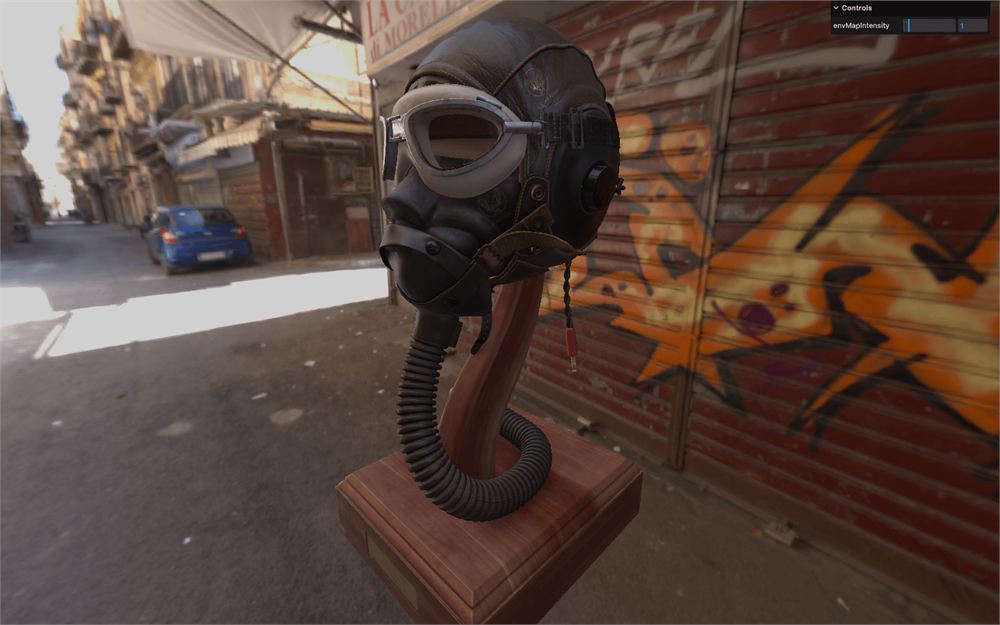
我们还设置了一个环境贴图(environment map),并使用 HDR 等距柱状投影(equirectangular)texture。这已经让 scene 拥有了不错的光照和反射效果。
我们不会再次讲解这个主题,因为已经有一整节课专门讨论过它。只需记住:HDR 环境能带来更好的光照,但代价是性能开销和文件体积增大。
尽量使用尽可能小的 texture;如果不把环境贴图用作背景,你甚至可以把分辨率降得很低,用户也不会察觉。
现在让我们来谈谈 WebGLRenderer 以及你需要了解的一些属性。
色调映射
色调映射(tone mapping)旨在将高动态范围(HDR)值转换为低动态范围(LDR)值。
虽然这里说的 HDR 与环境贴图中的 HDR 是同一个概念,但 Three.js 中的 tone mapping 实际上会伪造从 LDR 到 HDR 的转换过程——即使颜色本身并非 HDR,也能得到非常真实的渲染效果。
要更改色调映射,请更新 WebGLRenderer 上的 toneMapping 属性。
有多个可选值:
THREE.NoToneMapping(默认)THREE.LinearToneMappingTHREE.ReinhardToneMappingTHREE.CineonToneMappingTHREE.ACESFilmicToneMapping
让我们从 THREE.ACESFilmicToneMapping 开始:
// Tone mapping
renderer.toneMapping = THREE.ACESFilmicToneMapping
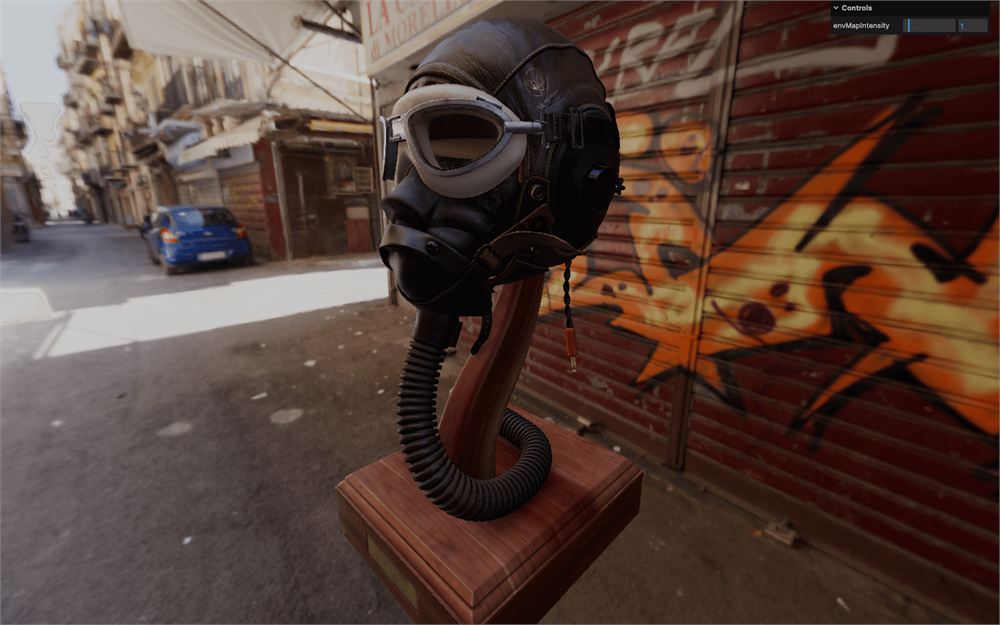
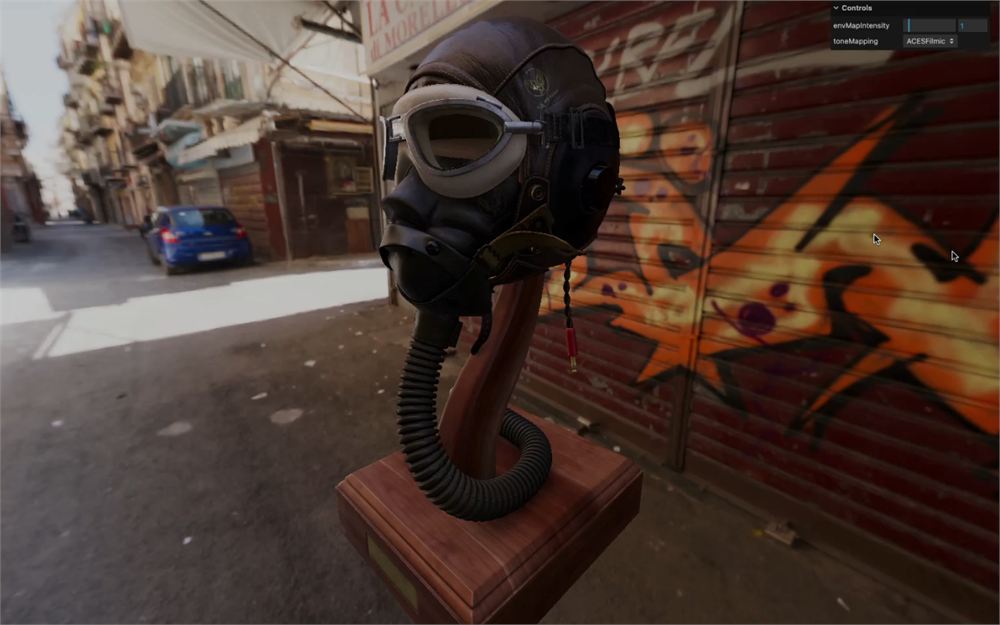
为了更直观地感受差异,让我们把 toneMapping 加到 lil-gui 中。我们可以通过向 gui.add(...) 的第三个参数传入一个包含不同键和值的对象来创建一个下拉菜单:
gui.add(renderer, 'toneMapping', {
    No: THREE.NoToneMapping,
    Linear: THREE.LinearToneMapping,
    Reinhard: THREE.ReinhardToneMapping,
    Cineon: THREE.CineonToneMapping,
    ACESFilmic: THREE.ACESFilmicToneMapping
})
让我们试试 THREE.ReinhardToneMapping:
renderer.toneMapping = THREE.ReinhardToneMapping
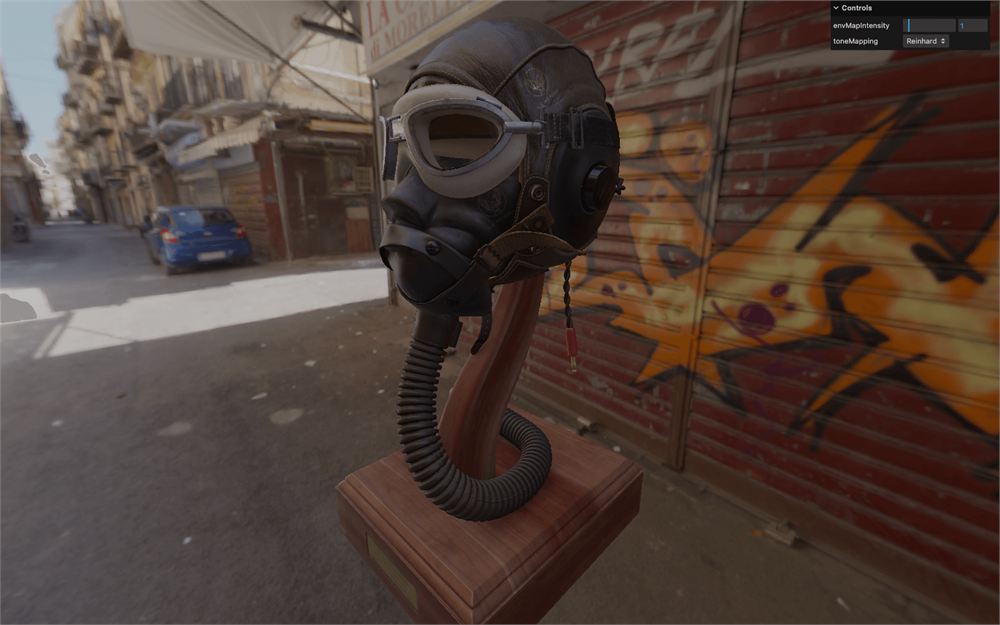
虽然这种色调映射可能会给人色彩发白的感觉,但它实际上能达到很高的真实感,就像一台设置不当的相机拍出的效果。
我们可以灵活地调整色调映射曝光(tone mapping exposure),从而影响进入 scene 的光量,算法会相应地做出调整。要修改这个值,我们只需直接更新 renderer 上的 toneMappingExposure 属性:
renderer.toneMappingExposure = 2
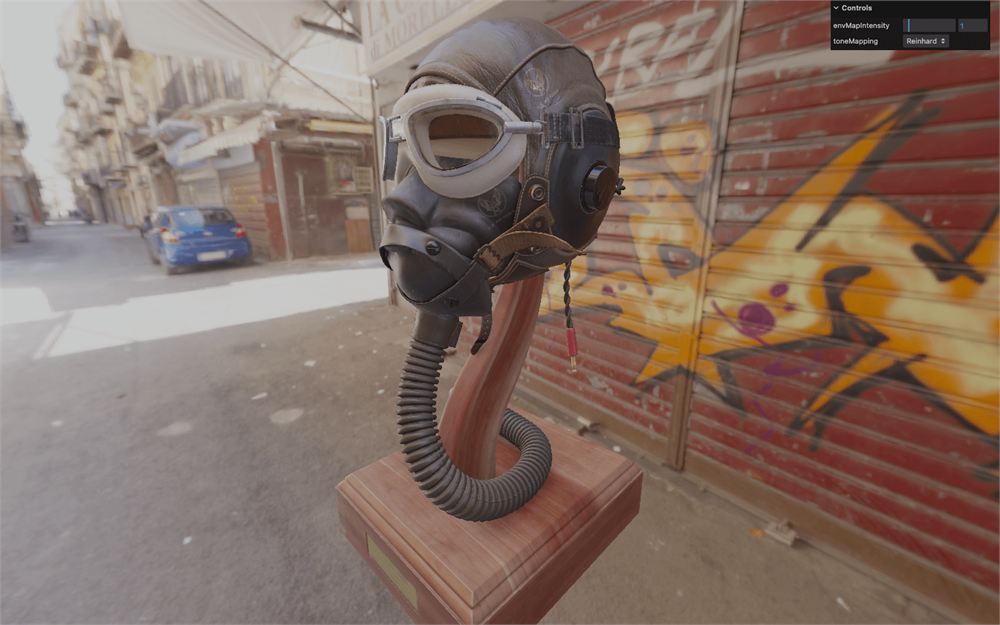
我们也把它加到 lil-gui 中:
gui.add(renderer, 'toneMappingExposure').min(0).max(10).step(0.001)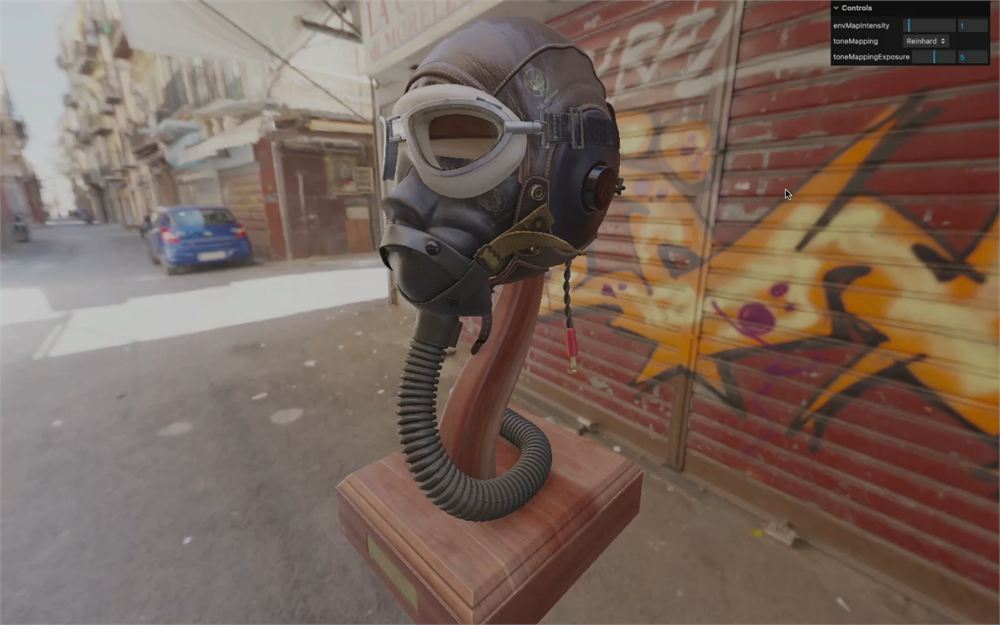
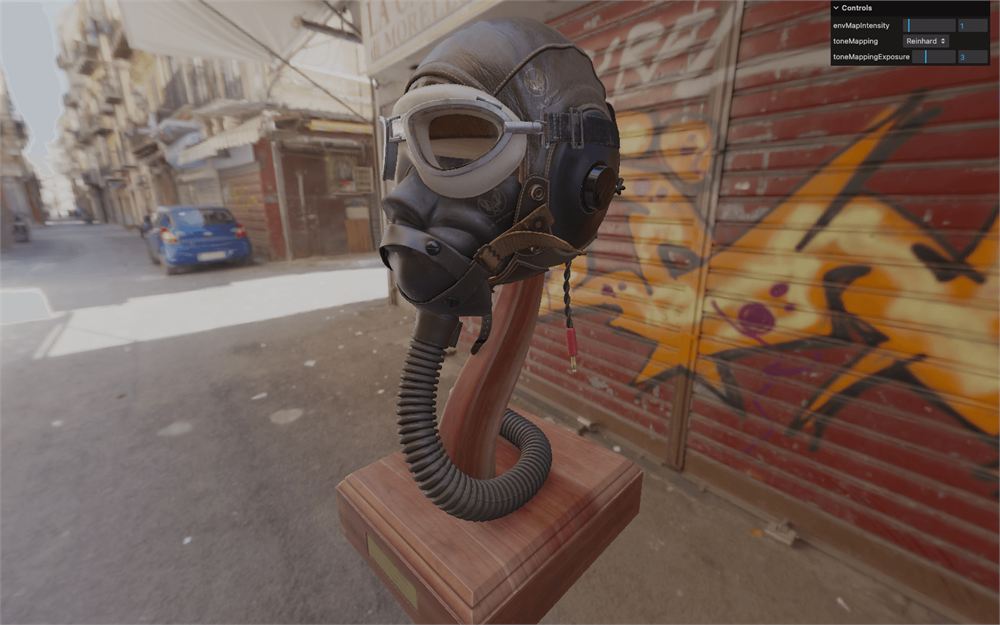
目前我们先把 toneMappingExposure 设为 3:
renderer.toneMappingExposure = 3
抗锯齿
我们把在某些情况下出现的、通常位于 geometry 边缘的阶梯状瑕疵称为锯齿(aliasing)。
我们的模型不会出现这个问题,因为它有很多细节。但如果你的屏幕像素比为 1,观察边缘——尤其是明亮的边缘——慢慢旋转 camera,你可能会看到这个问题:
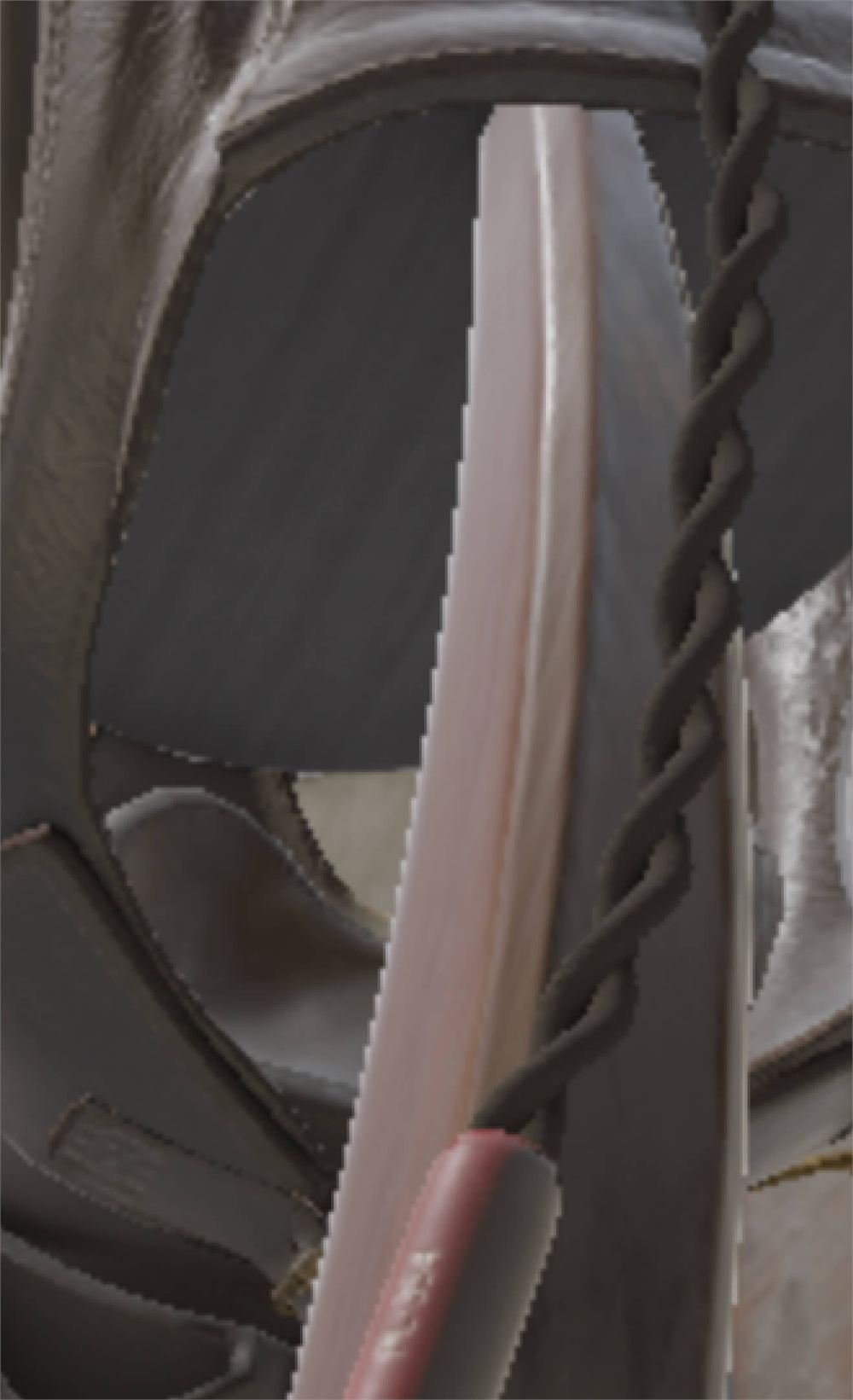
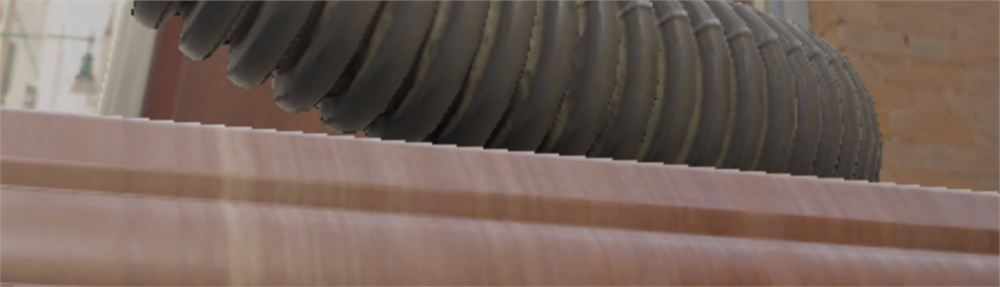
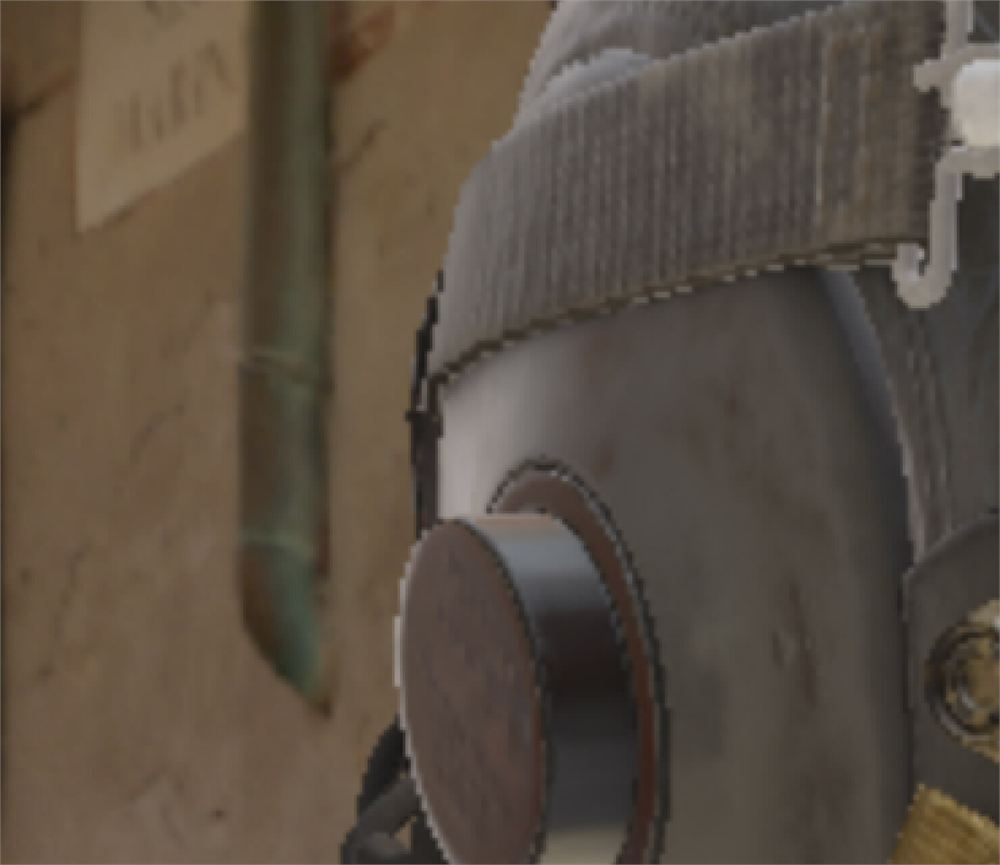
这是一个众所周知的问题。当渲染一个像素时,它会测试该像素中渲染的是哪个 geometry,计算颜色,最终该颜色显示在屏幕上。
但 geometry 的边缘通常无法与屏幕像素的垂直线和水平线完美对齐,这就是为什么你会得到这种名为 aliasing 的阶梯状瑕疵。
有许多方法可以解决这个问题,开发者们多年来一直在与之斗争。
一个简单的解决方案是把 renderer 的分辨率提高一倍。当缩回正常尺寸时,每个像素的颜色会自动由渲染出的 4 个像素取平均得到。
这种方案称为 super sampling(SSAA)或 fullscreen sampling(FSAA),它是最简单、最高效的一种。遗憾的是,这意味着要多渲染 4 倍的像素,可能会导致性能问题。
另一种方案称为 multi sampling(MSAA)。同样,它的思路是像 super sampling 那样为每个像素渲染多个值(通常是 4 个),但只在 geometry 的边缘进行。然后将这些像素值取平均得到最终的像素颜色。
最新的 GPU 可以执行这种 multi sampling 抗锯齿,Three.js 会自动处理相关设置。我们只需在实例化时(而不是之后)将 antialias 属性设为 true:
const renderer = new THREE.WebGLRenderer({
    canvas: canvas,
    antialias: true
})
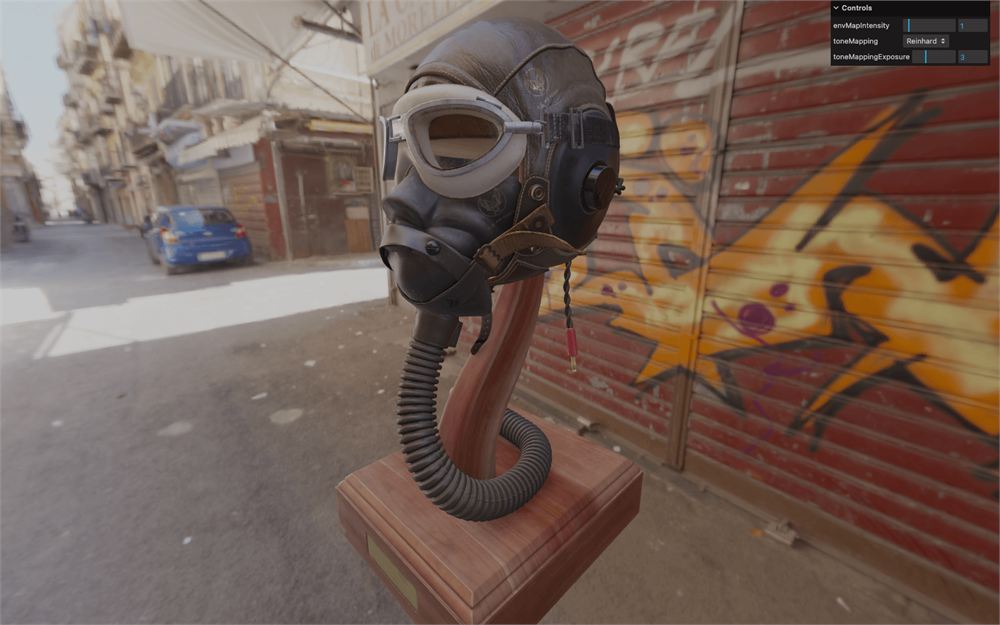
现在这些锯齿瑕疵应该消失了。
启用 antialias 会消耗一些资源。正如之前所说,像素比高于 1 的屏幕其实并不太需要 antialias。一个正确的做法是只在像素比低于 2 的屏幕上启用它。我们将在以后的课程中学习如何做到这一点,以及其他优化技巧。
阴影
对真实感渲染来说,一个重要补充就是添加阴影。由于环境贴图就像来自四面八方的光,它无法投射阴影。
我们需要添加一个大致与环境贴图光照相匹配的 light,并用它来投射阴影。
平行光
我们将使用一个 DirectionalLight,暂时随机放置它的位置:
/**
 * Directional light
 */
const directionalLight = new THREE.DirectionalLight('#ffffff', 6)
directionalLight.position.set(3, 7, 6)
scene.add(directionalLight)
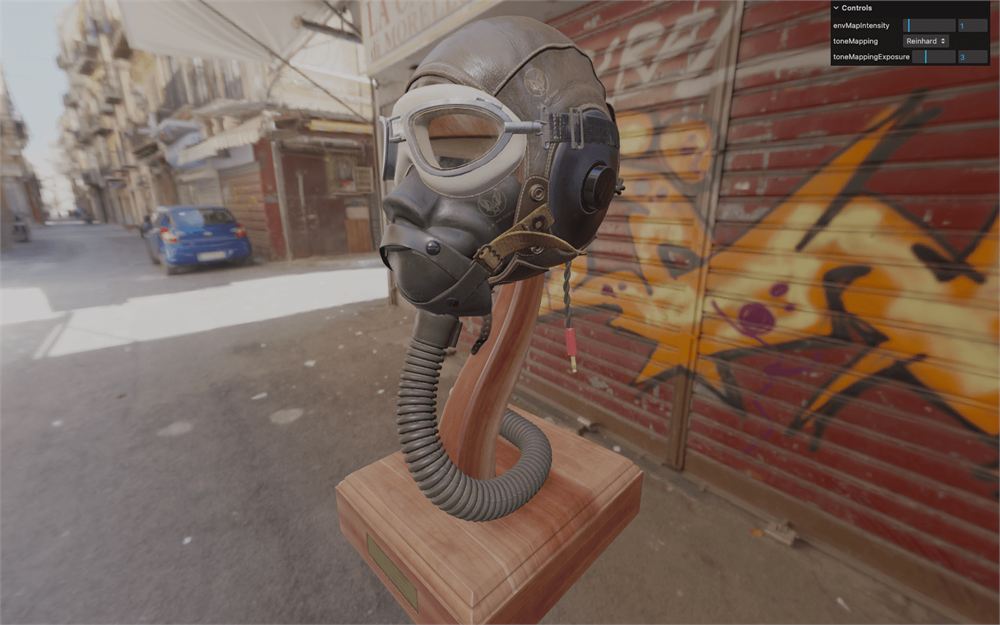
然后把它 position 的各个分量加到 lil-gui 中:
gui.add(directionalLight, 'intensity').min(0).max(10).step(0.001).name('lightIntensity')
gui.add(directionalLight.position, 'x').min(- 10).max(10).step(0.001).name('lightX')
gui.add(directionalLight.position, 'y').min(- 10).max(10).step(0.001).name('lightY')
gui.add(directionalLight.position, 'z').min(- 10).max(10).step(0.001).name('lightZ')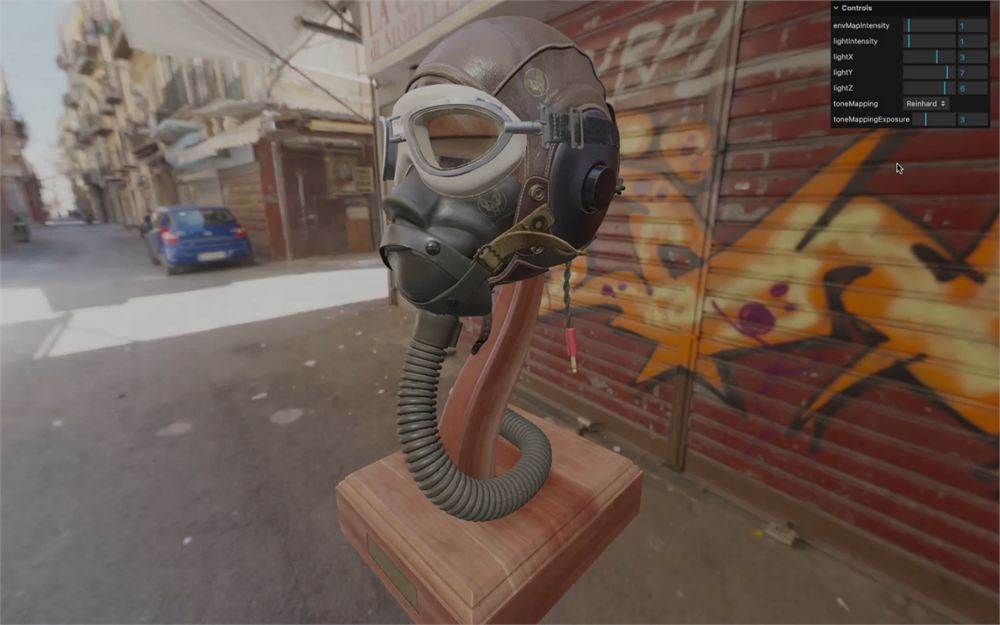
这会让找到与环境贴图相匹配的位置容易得多,我们稍后就会这么做。
启用阴影
现在我们有了可以投射阴影的 light,在 WebGLRenderer 实例上开启阴影。然后,像我们在 Shadows 课程中那样,将 shadow 类型改为 THREE.PCFSoftShadowMap:
// Shadows
renderer.shadowMap.enabled = true
renderer.shadowMap.type = THREE.PCFSoftShadowMap
在 DirectionalLight 上启用它,并把它加到 lil-gui 中:
// Shadows
directionalLight.castShadow = true
gui.add(directionalLight, 'castShadow')
为 directionalLight.shadow.camera 添加一个 CameraHelper:
// Helper
const directionalLightCameraHelper = new THREE.CameraHelper(directionalLight.shadow.camera)
scene.add(directionalLightCameraHelper)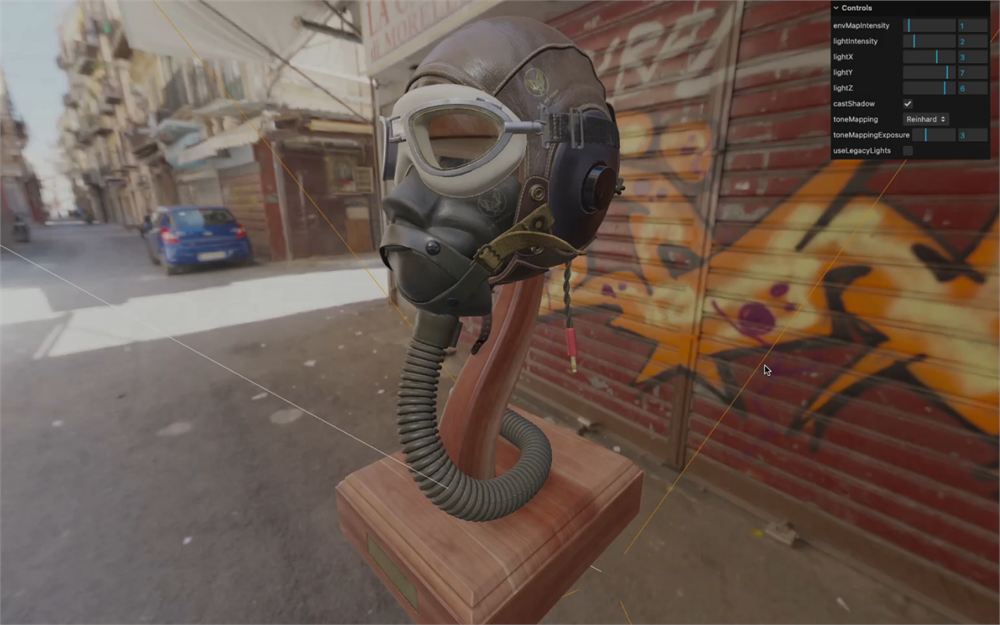
如你所见,shadow camera 覆盖的区域并没有正确地包住模型。这是因为 directional light 默认指向 scene 的中心,而这里对应的是模型的最低处。
我们需要把那个 target 向上移动,这可以通过 directionalLight.target 属性来实现,它是一个 Object3D,也就是说它有一个 position 属性(就像一个 Mesh):
// Target
directionalLight.target.position.set(0, 4, 0)
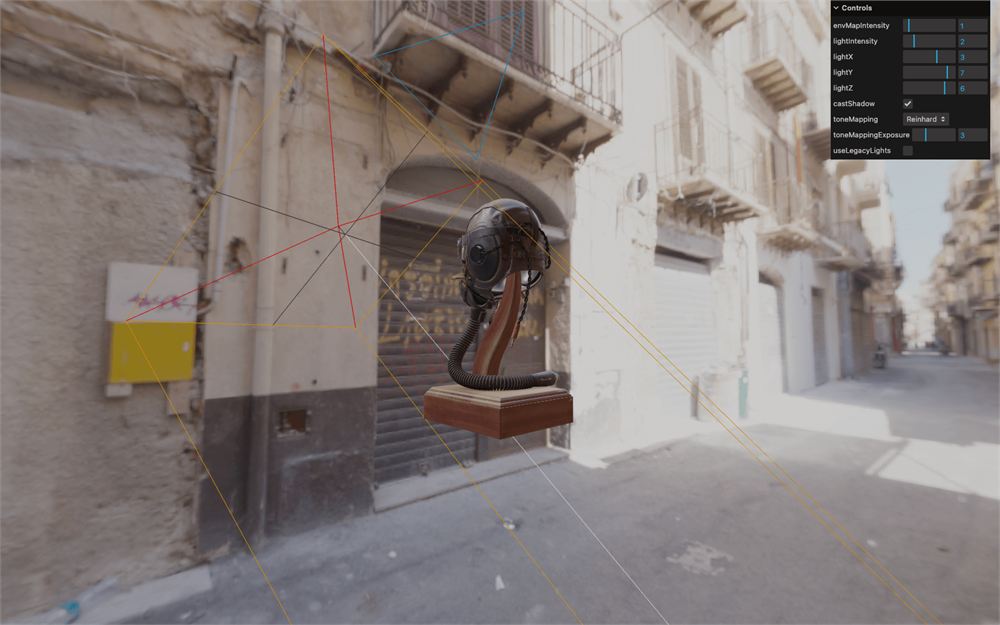
没有变化?如果你还记得上一节课的内容,Three.js 使用矩阵(matrix)来定义物体的变换。当我们更改 position、rotation 和 scale 这类属性时,它们会被编译进一个 matrix,但这个编译过程会在物体即将被渲染前才进行,而且只有物体在 scene 中时才会执行。虽然 directionalLight 在 scene 中,但它的 target 并不在。
我们有两个选择:
- 把
target添加到scene中 - 使用
updateWorldMatrix()方法手动更新 matrix
我们选择手动更新,在更改 target 的 position 之后立即对它调用 updateWorldMatrix():
// Target
directionalLight.target.position.set(0, 4, 0)
directionalLight.target.updateWorldMatrix()
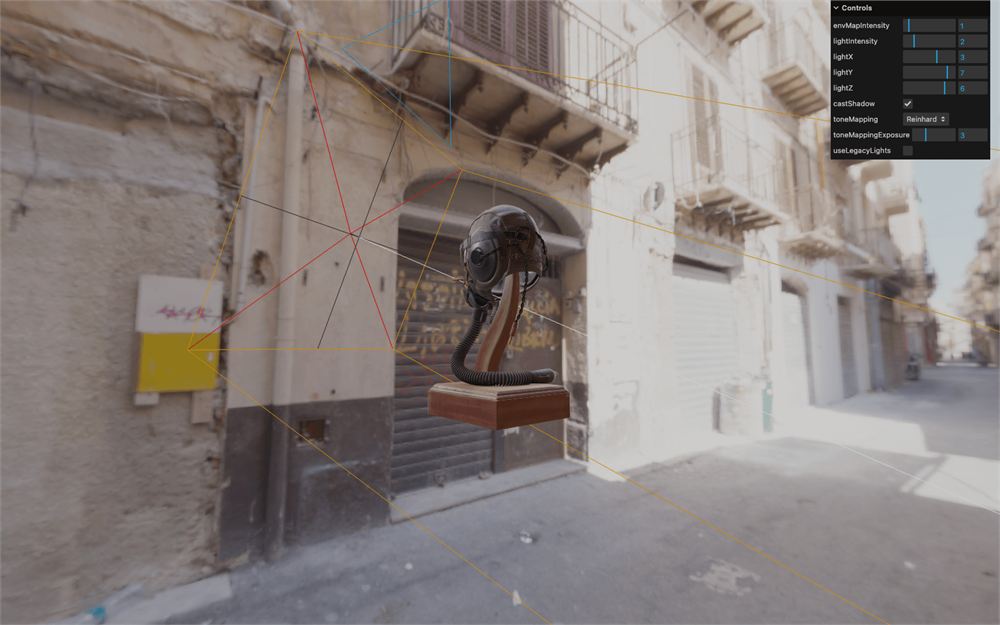
现在 shadow camera helper 已经贴合 scene,我们可以减小它的 far 值:
directionalLight.shadow.camera.far = 15
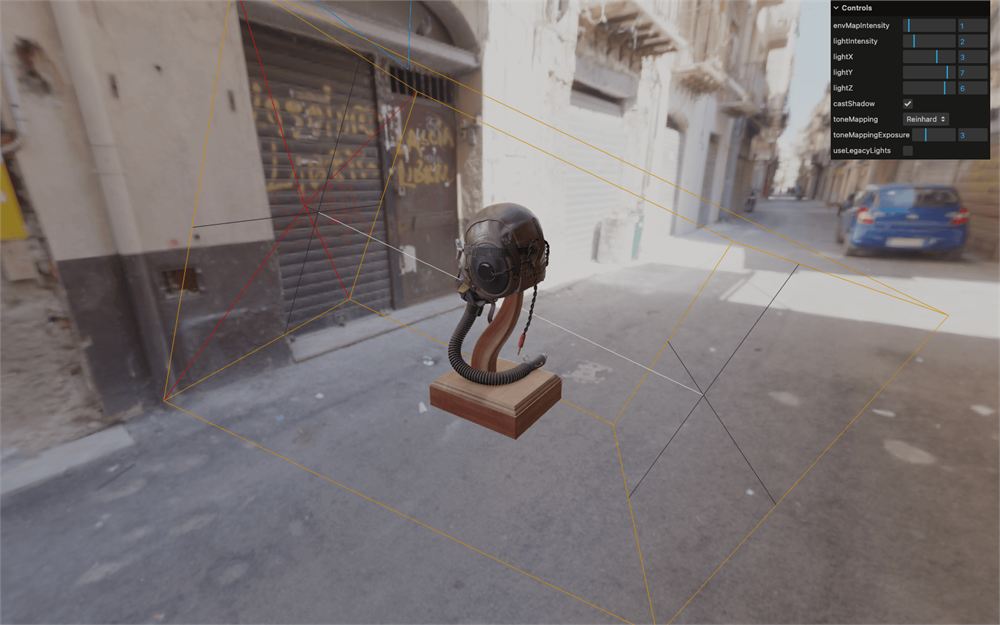
由于我们想要真实而精确的阴影,而且只有一个 light,我们可以把 shadow map 的尺寸提高到 1024x1024,而不必担心帧率下降。
directionalLight.shadow.mapSize.set(1024, 1024)现在我们可以为模型的所有 Mesh 启用阴影。
我们有一个名为 updateAllMaterials 的函数,它会在模型加载时被调用。这个函数使用 scene 上的 traverse() 方法遍历每个 material,并判断它是否是 Mesh:
const updateAllMaterials = () =>
{
    scene.traverse((child) =>
    {
        if(child.isMesh)
        {
            // Activate shadow here
        }
    })
}
在这里,我们可以简单地为所有子对象同时启用 castShadow 和 receiveShadow:
const updateAllMaterials = () =>
{
    scene.traverse((child) =>
    {
        if(child.isMesh)
        {
            // ...

            child.castShadow = true
            child.receiveShadow = true
        }
    })
}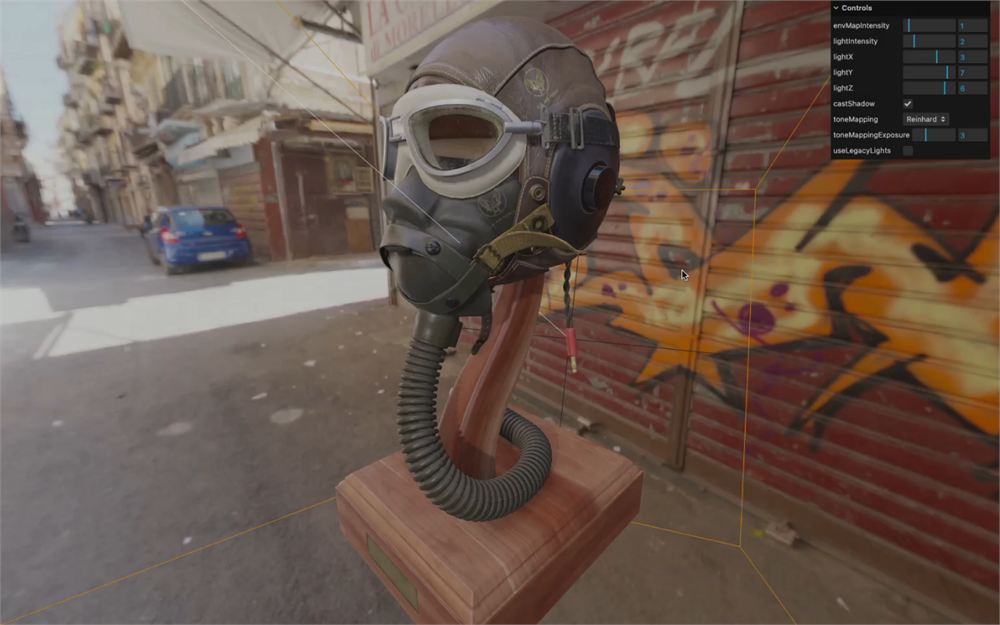
现在你应该能看到准确的阴影了,主要出现在木质底座上和模型内部。
既然我们同时能看到 helper 和阴影,就可以调整 light 的 position 和 intensity,以找到完美的设置:
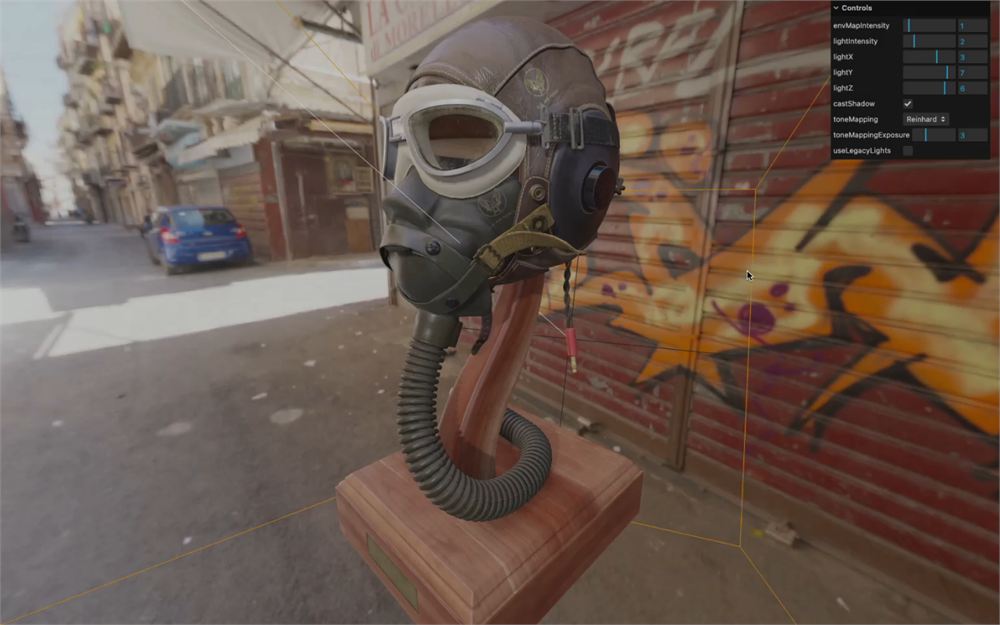
directionalLight.position.set(- 4, 6.5, 2.5)移除或注释掉 helper:
// // Helper
// const directionalLightCameraHelper = new THREE.CameraHelper(directionalLight.shadow.camera)
// scene.add(directionalLightCameraHelper)
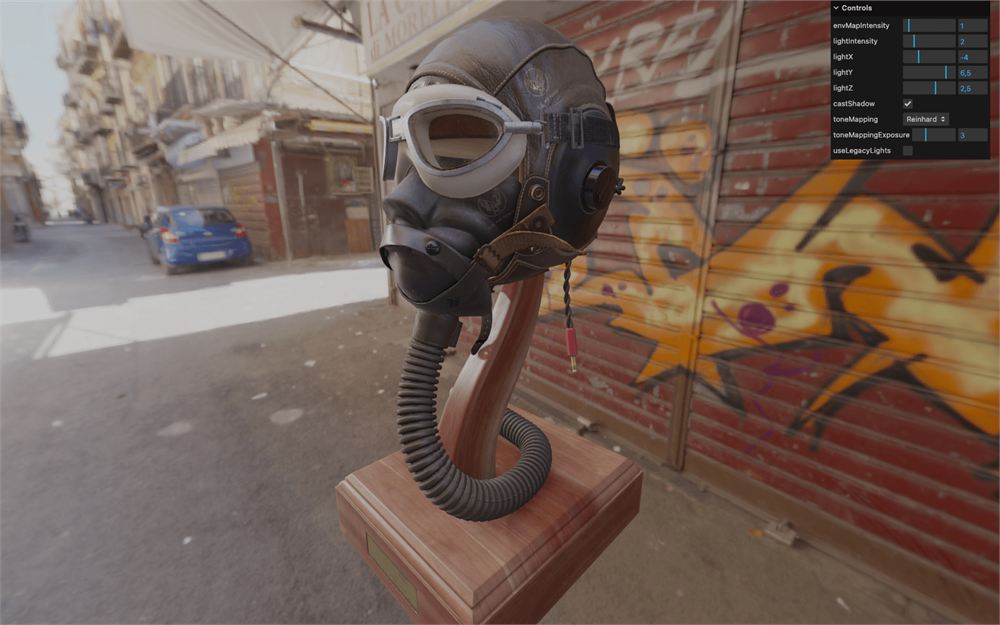
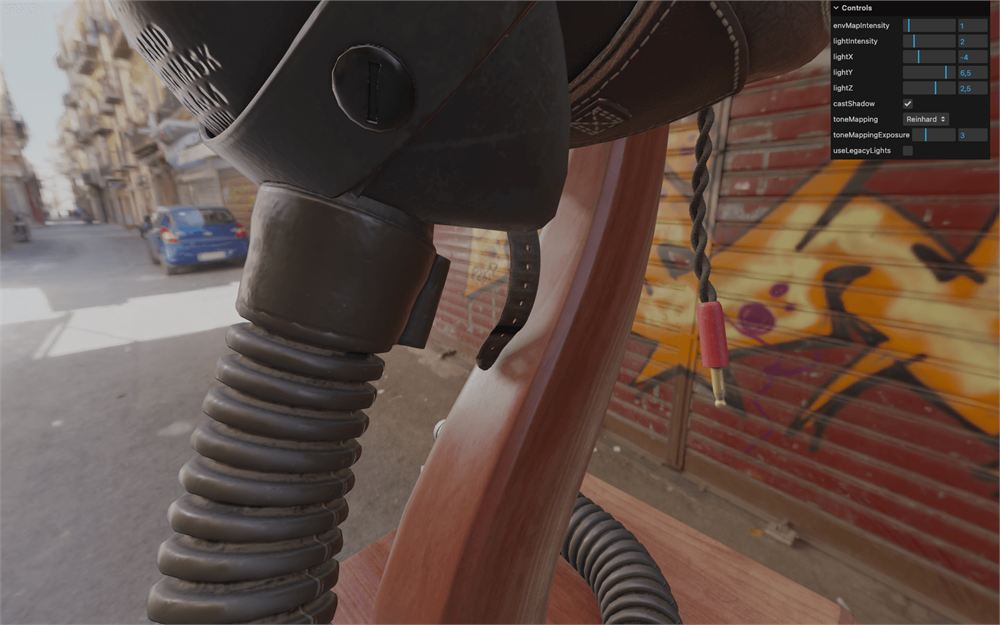
另外注意,虽然我们通过把 mapSize 设为 1024 获得了锐利的阴影,但更低的分辨率会产生模糊的阴影——如果 scene 中有足够的细节,它看起来也不会太糟,而且实际上会提升性能:
directionalLight.shadow.mapSize.set(512, 512)
Texture 与颜色空间
让我们添加一个地板和一堵后墙。这里的目标是使用 texture 并发现一个非常具体的问题,同时也是练习的机会。
如果我们想要真实的效果,选择合适的 texture 非常重要。网上有很多提供优秀 texture 的资源,但 Poly Haven 最近新增的 Textures 板块提供了很棒的 texture,而且我们可以精确选择要导出哪些文件。
为了节省时间,/static/textures/ 中已经提供了两套 texture,但你也可以随意使用自己的。导出设置看起来是这样的:
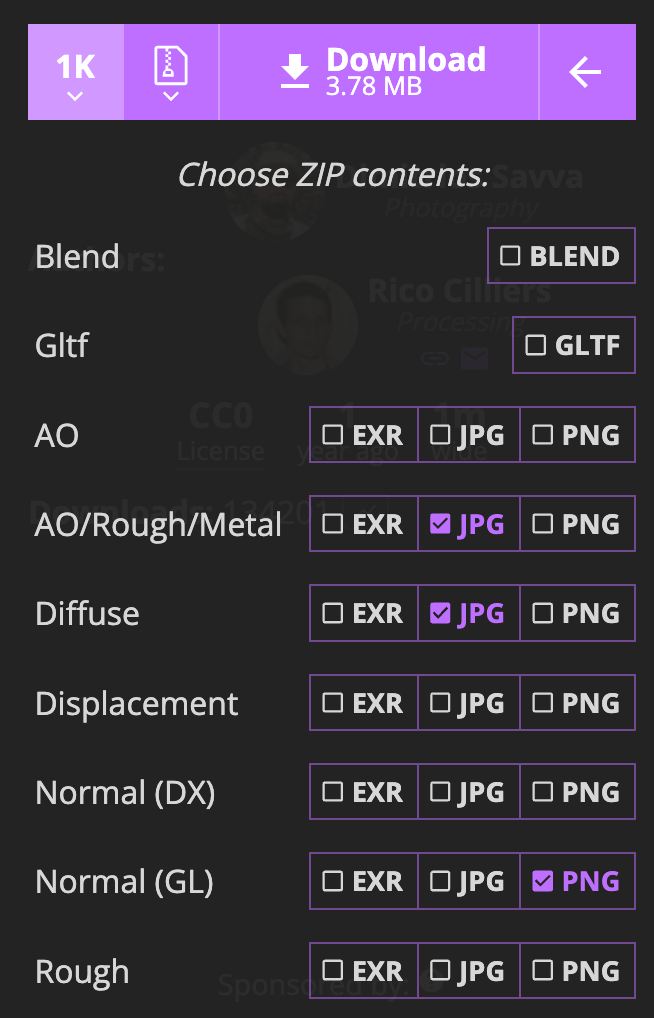
如果你想自己练习,现在是个好机会。使用 wood_cabinet_worn_long/ texture 在模型正下方创建一个 8x8 的平面,并使用 castle_brick_broken_06/ texture 在模型后方创建一个 8x8 的平面。
首先我们需要实例化 TextureLoader:
/**
 * Loaders
 */
// ...
const textureLoader = new THREE.TextureLoader()
接下来,我们需要加载地板的 texture:
/**
 * Floor
 */
const floorColorTexture = textureLoader.load('/textures/wood_cabinet_worn_long/wood_cabinet_worn_long_diff_1k.jpg')
const floorNormalTexture = textureLoader.load('/textures/wood_cabinet_worn_long/wood_cabinet_worn_long_nor_gl_1k.png')
const floorAORoughnessMetalnessTexture = textureLoader.load('/textures/wood_cabinet_worn_long/wood_cabinet_worn_long_arm_1k.jpg')
然后我们可以使用 PlaneGeometry 和一个 MeshStandardMaterial 来创建 Mesh,并使用我们加载的所有 texture:
const floor = new THREE.Mesh(
    new THREE.PlaneGeometry(8, 8),
    new THREE.MeshStandardMaterial({
        map: floorColorTexture,
        normalMap: floorNormalTexture,
        aoMap: floorAORoughnessMetalnessTexture,
        roughnessMap: floorAORoughnessMetalnessTexture,
        metalnessMap: floorAORoughnessMetalnessTexture,
    })
)
scene.add(floor)
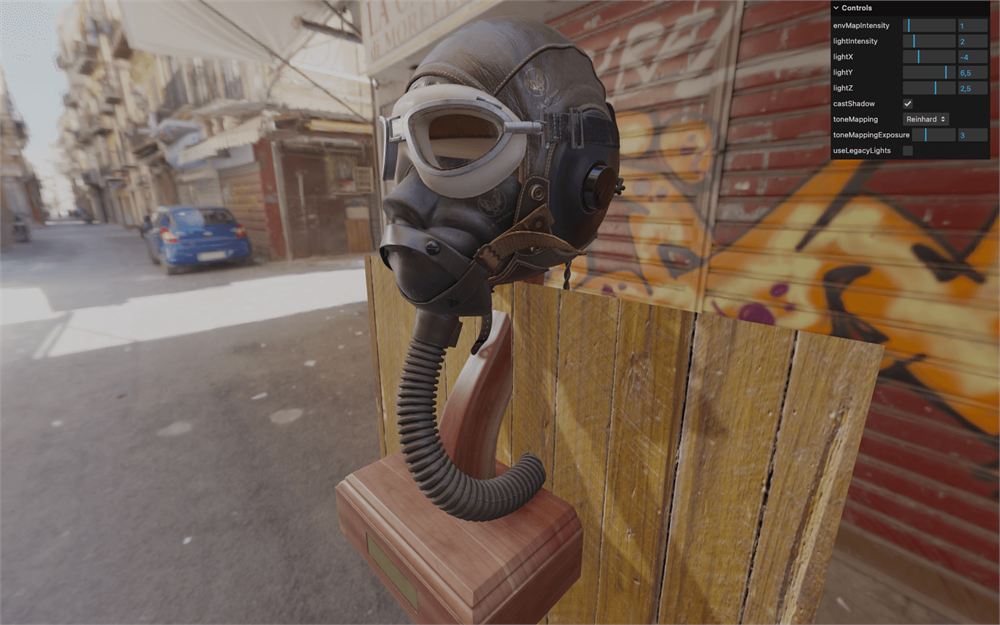
最后,我们旋转它:
floor.rotation.x = - Math.PI * 0.5
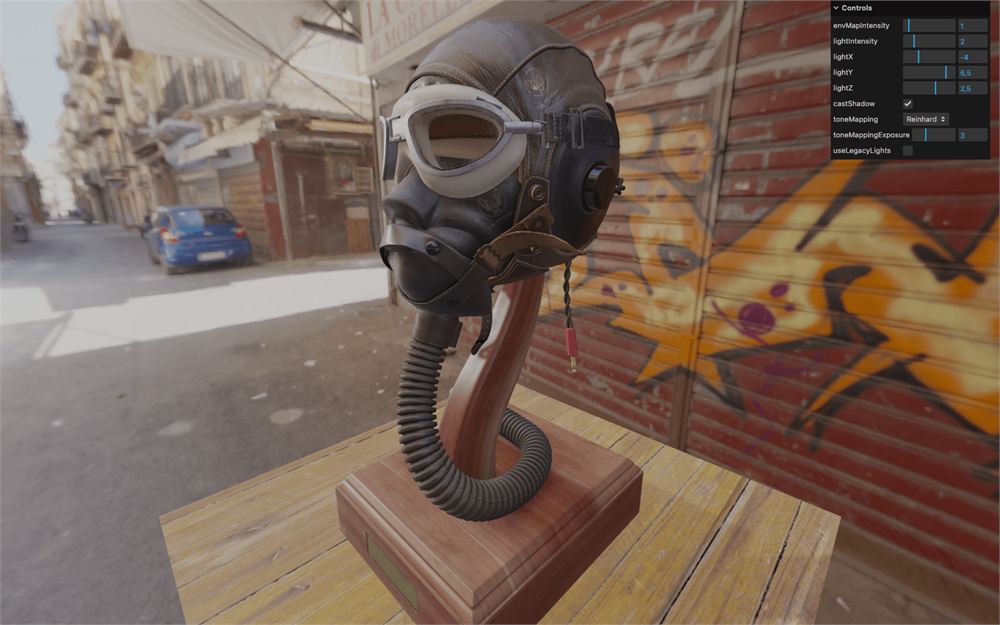
我们对墙也做同样的处理:
/**
 * Wall
 */
const wallColorTexture = textureLoader.load('/textures/castle_brick_broken_06/castle_brick_broken_06_diff_1k.jpg')
const wallNormalTexture = textureLoader.load('/textures/castle_brick_broken_06/castle_brick_broken_06_nor_gl_1k.png')
const wallAORoughnessMetalnessTexture = textureLoader.load('/textures/castle_brick_broken_06/castle_brick_broken_06_arm_1k.jpg')

const wall = new THREE.Mesh(
    new THREE.PlaneGeometry(8, 8),
    new THREE.MeshStandardMaterial({
        map: wallColorTexture,
        normalMap: wallNormalTexture,
        aoMap: wallAORoughnessMetalnessTexture,
        roughnessMap: wallAORoughnessMetalnessTexture,
        metalnessMap: wallAORoughnessMetalnessTexture,
    })
)
wall.position.y = 4
wall.position.z = - 4
scene.add(wall)
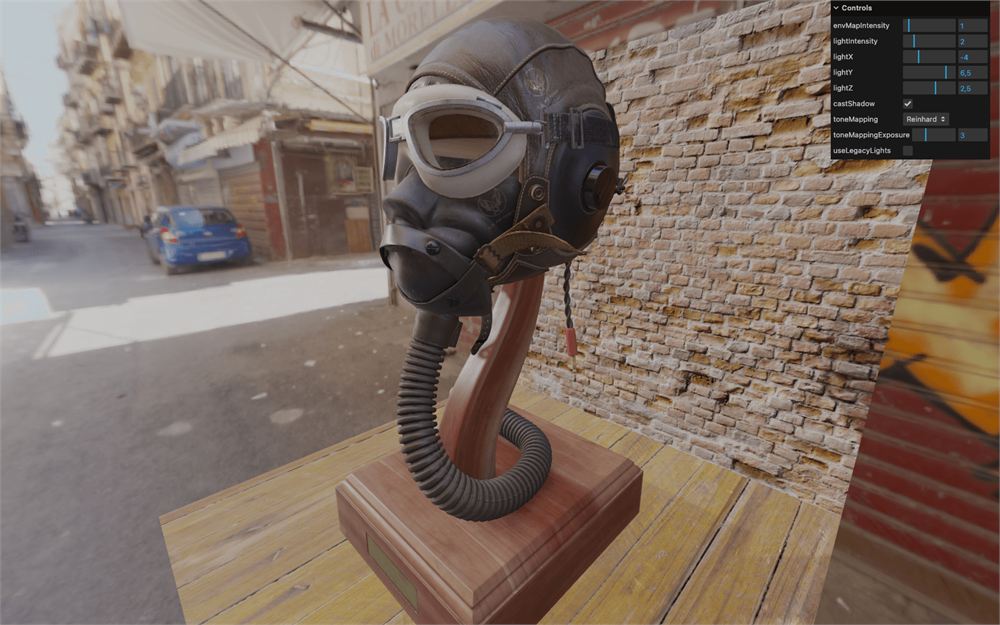
尽管我们的 scene 相当明亮,但可以看到 texture 看起来白得很奇怪。这是由于我们所说的“颜色空间”(color space)造成的。
颜色空间是一种根据人眼敏感度来优化颜色存储方式的方法。这主要涉及那些会被看到的 texture(在我们的例子中是 bricksColorTexture)。
作为信息使用的 texture,例如 bricksAmbientOcclusionTexture、bricksNormalTexture 和 bricksRoughnessTexture,则应该使用线性(linear)颜色进行编码。
默认情况下,Three.js 将颜色空间设为 linear,这意味着我们只需修改 floorColorTexture 和 wallColorTexture 这两个 texture,把它们的 colorSpace 设为 THREE.SRGBColorSpace:
floorColorTexture.colorSpace = THREE.SRGBColorSpace

// ...

wallColorTexture.colorSpace = THREE.SRGBColorSpace
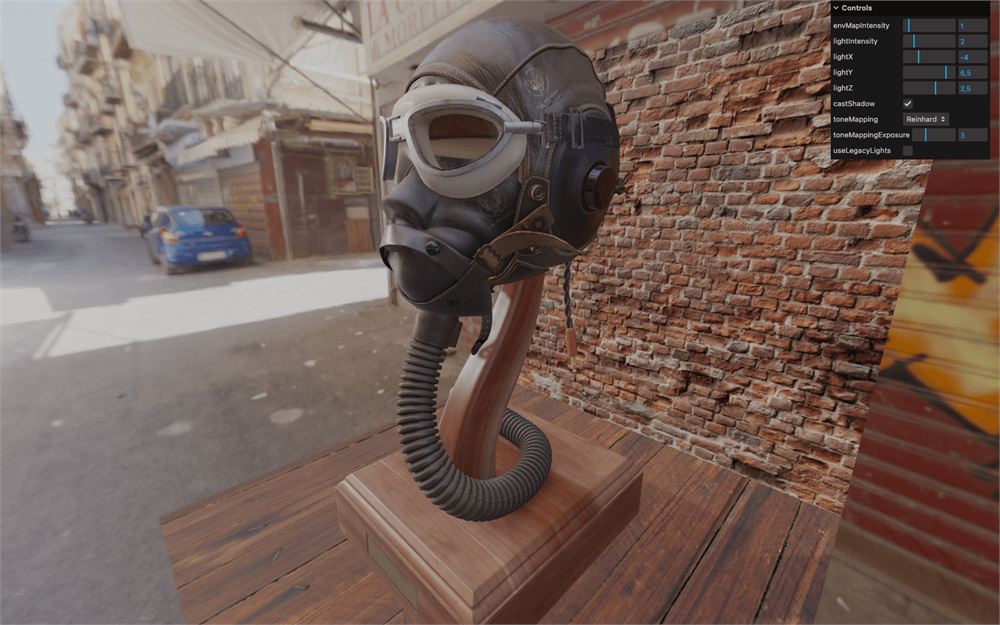
好多了。
但你可能会疑惑,为什么我们对模型不需要这样做。原因是这些信息已经在 GLTF 文件内部设置好了,Three.js 知道该对 texture 使用哪种颜色空间。
最终微调
现在一切就绪,我们可以微调各项数值,确保 directionalLight 与环境贴图中的光相匹配,尝试其他环境贴图,调整阴影,测试不同的色调映射,等等。
这由你决定。慢慢来,暂时把视线从渲染结果上移开,看看周围,因为你需要现实生活中的参照物,确保屏幕颜色正常,也许可以把作品展示给朋友以获得外部的视角,直到一切都调校正确。
汉堡
让我们用汉堡来试试。一个版本已经放在 /static/models/hamburger.glb 中。
这个文件没有经过 Draco 压缩。如果你使用自己的模型,请确保它没有被压缩,或者像我们在 Imported Model 课程中那样,把 DRACOLoader 添加到 GLTFLoader。
注释掉 Helmet 部分(这样必要时我们可以把它放回来):
// // Helmet
// gltfLoader.load(
//     '/models/FlightHelmet/glTF/FlightHelmet.gltf',
//     (gltf) =>
//     {
//         gltf.scene.scale.set(10, 10, 10)
//         scene.add(gltf.scene)

//         updateAllMaterials()
//     }
// )
用同样的方式加载位于 /models/hamburger.glb 的汉堡,并使用下面的 scale 和 position:
gltfLoader.load(
    '/models/hamburger.glb',
    (gltf) =>
    {
        gltf.scene.scale.set(0.4, 0.4, 0.4)
        gltf.scene.position.set(0, 2.5, 0)
        scene.add(gltf.scene)

        updateAllMaterials()
    }
)
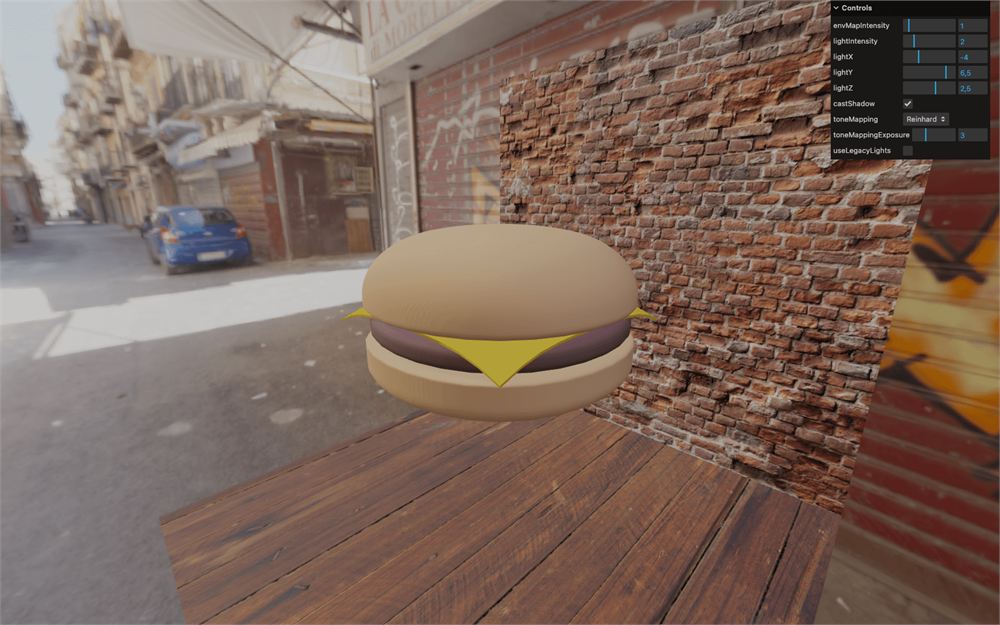
你的汉堡出现了,但表面被一些讨厌的条纹覆盖。
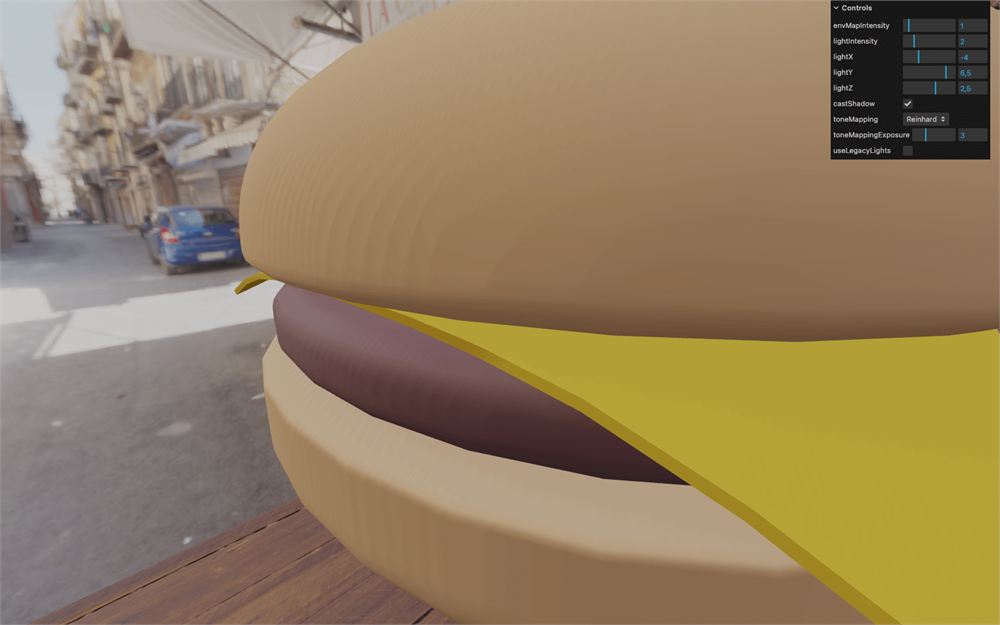
把 envMapIntensity 调低可以更清楚地看到它:
scene.environmentIntensity = 0
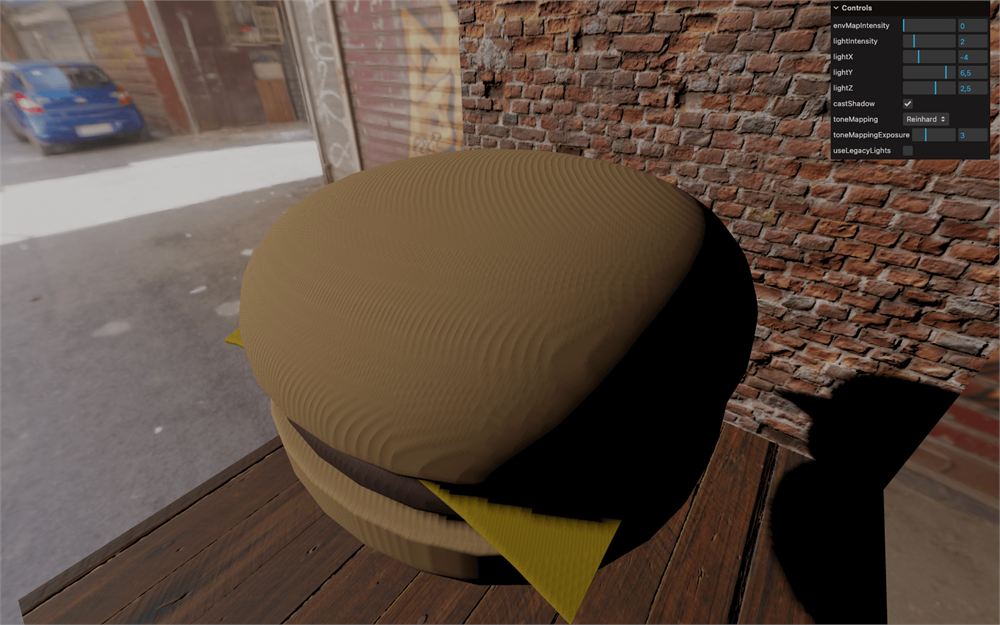
不,我们并没有让汉堡在烤架上烤焦。
这些瑕疵叫做“阴影痤疮”(shadow acne)。在计算表面是否处于阴影中时,由于精度原因,阴影痤疮既可能出现在平滑表面上,也可能出现在平坦表面上。这里发生的情况是汉堡在自己表面上投射了阴影。
我们必须调整 light 的 shadow 的 bias 和 normalBias 属性来修复这个阴影痤疮。
bias 通常对平坦表面有帮助。
normalBias 通常对圆润表面有帮助。
解决这个问题就是要为这两个设置找到合适的值,而有什么比用 lil-gui 来找这些完美值更好的呢
gui.add(directionalLight.shadow, 'normalBias').min(- 0.05).max(0.05).step(0.001)
gui.add(directionalLight.shadow, 'bias').min(- 0.05).max(0.05).step(0.001)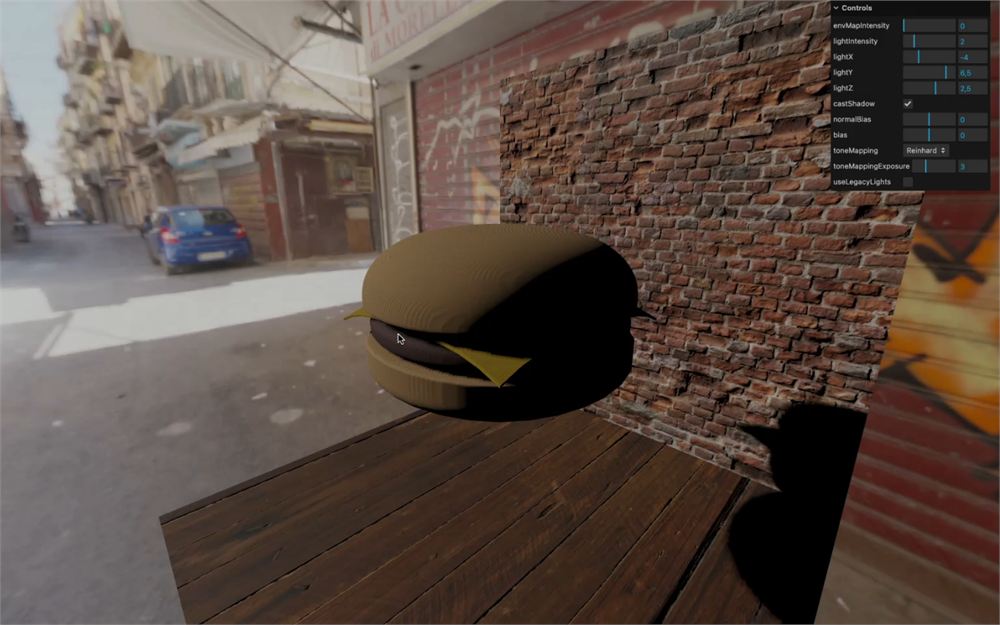
在我们的例子中,我们可以将 normalBias 定为 0.025,bias 定为 -0.004:
directionalLight.shadow.normalBias = 0.027
directionalLight.shadow.bias = - 0.004
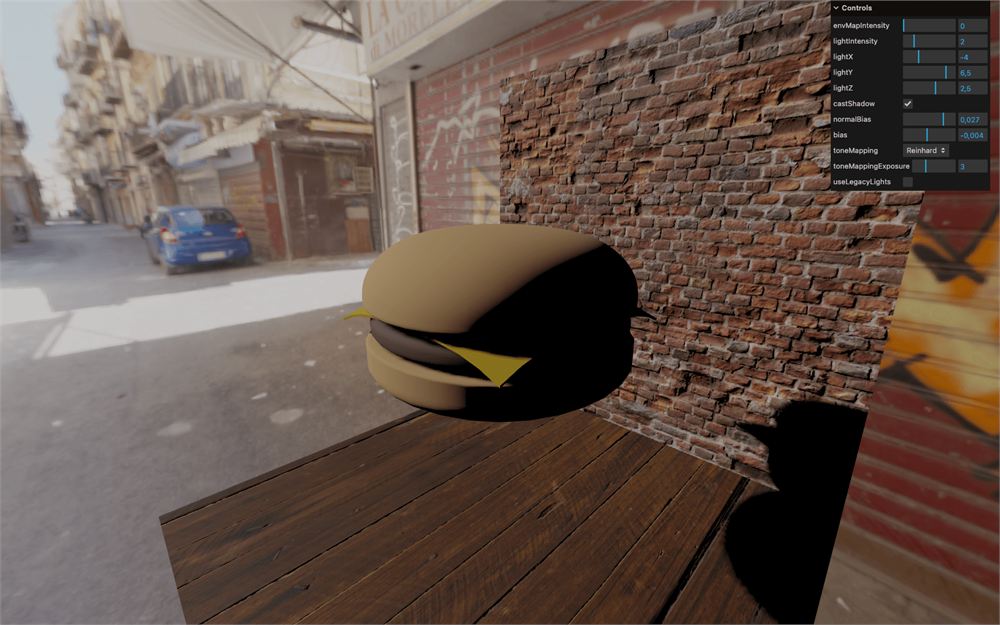
现在你得到一个相当不错、没有痤疮的汉堡,我们可以把 envMapIntensity 重新设为 1:
scene.environmentIntensity = 1
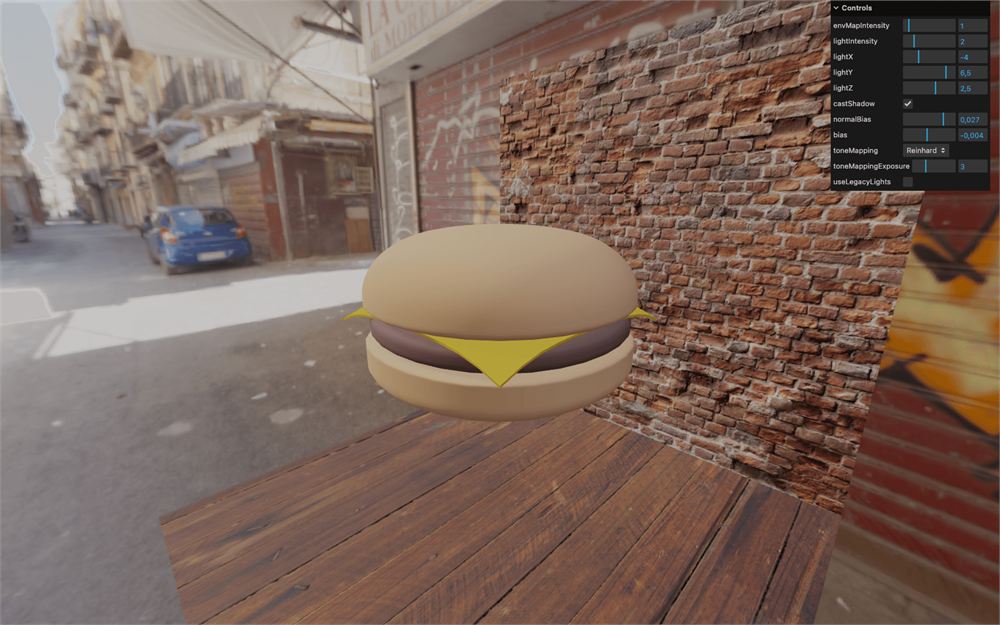
祝你用餐愉快。
更进一步
本节课中我们学到的技术都是能为你打下良好基础的传统技术,但还有大量其他技术取决于你想要实现的效果,比如环境光遮蔽(ambient occlusion)、景深(depth of field)、运动模糊(motion blur)、泛光(bloom)等。
这些技术大多需要使用 post-processing,你将在后面的一节课中学到。
另外注意,我们一直在使用 HDR 环境贴图和 texture,并没有太在意性能,因为我们要专注于真实感,但要始终关注性能。我们将在以后的课程中讨论优化。